


At a glance
HighLevel forms and surveys collect leads by embedding on web pages or funnels and automatically creating or updating contact records in the CRM upon submission. You organize responses by mapping standard and custom fields, triggering automated workflows via the Form Submitted trigger, and reviewing centralized submission logs directly inside the form builder or main dashboard.
In this guide
Capturing Inbound Leads: Forms vs. Surveys
In HighLevel, forms and surveys serve as native entry points for inbound lead generation. Rather than requiring external form plugins or third-party webhooks, both tools connect directly to the underlying CRM database. When a visitor submits a form or completes a multi-step survey, HighLevel immediately checks your account’s deduplication rules and creates a new contact record or updates an existing one.
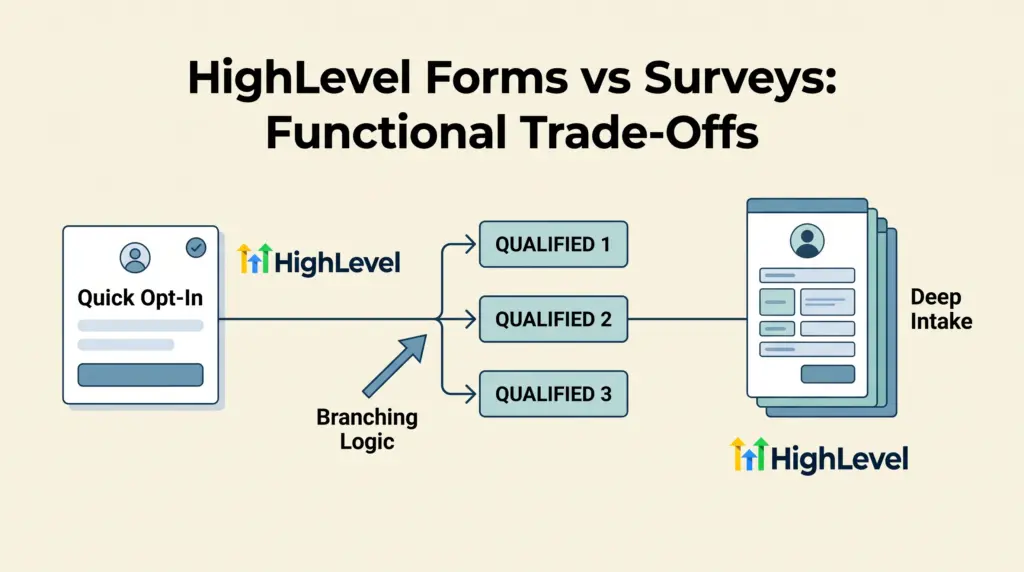
Forms are primarily designed for single-step data capture, such as newsletter signups, contact inquiries, and gated resource downloads. Surveys provide a multi-slide or multi-step experience suited for lead qualification, intake assessments, and quote estimations. Both builders live under the Sites navigation menu and allow users to either generate standalone direct links or paste embed codes into compatible external content management systems.
Configuring Custom Fields and Field Mapping Rules
HighLevel forms collect both standard CRM attributes and custom business fields. Standard elements capture baseline identifiers like first name, last name, email address, phone number, and message text. To collect operational details—such as budget tiers, requested services, or project timeframes—teams add custom fields directly from the builder canvas.
Supported Field Types
- Selection fields: Single dropdowns, multi-select dropdowns, radio select buttons, and checkboxes.
- Text and numeric fields: Single-line text, multi-line textboxes, numeric values, and monetary inputs.
- Actionable utilities: Date pickers, lists, and file uploads for client documents.
Field Locking and the Scoring Rule
HighLevel features a quick-add interface where custom fields can be dragged onto the canvas and defined on the fly. However, administrators must note a key structural rule: once a form or survey is saved, the custom field’s administrative name and unique query key lock within that form interface. Future structural modifications to the field’s underlying properties must be performed from Settings → Custom Fields.
Additionally, HighLevel enforces a hardcoded naming behavior: if a custom field contains the exact word score anywhere in its name, the system automatically classifies and processes it as a numeric scoring element across forms, surveys, and quizzes.
Automating Post-Submission Responses and Team Alerts
Collecting data is only the first half of the process; organizing follow-ups ensures leads do not go cold. Within the form builder’s native settings, teams can configure basic communication:
- Internal Email Notifications: Sends immediate submission alerts to internal staff addresses with specific subject lines and sender names.
- Auto Responder: Delivers an immediate confirmation receipt back to the lead’s submitted email address.
- Post-Submission Actions: Directs the respondent to a custom thank-you message or redirects their browser to a dedicated scheduling page.
For advanced routing, teams connect submissions to HighLevel workflow automations. Using the documented Form Submitted or Survey Submitted trigger, teams can apply contact tags, assign leads to team members, route opportunities into specific HighLevel sales pipeline stages, and schedule automated SMS or email sequences without manual data re-entry.
Organizing and Reviewing Submission Data
HighLevel provides two distinct locations to review and audit incoming responses:
- The Global Forms Submissions Log: Located under the primary forms management area, this view aggregates entries across campaigns for high-level oversight.
- The Builder Submissions Tab: Inside the specific form or survey editor, the Submissions tab displays a dedicated table of captured rows. Users can filter entries by date range, search by lead name, and customize visible columns to verify that specialized custom fields captured data properly during testing.
Additionally, the Analytics tab within each builder tracks total views, total submissions, average completion time, and overall conversion percentage, allowing teams to spot drop-offs in long intake workflows.
Forms vs. Surveys: Feature and Workflow Comparison
While both tools share visual styling engines, quick-add field drawers, and CRM connections, their interactive behaviors differ across several functional criteria:
| Capability | HighLevel Forms | HighLevel Surveys |
|---|---|---|
| Primary layout structure | Single-frame layout (compact lead capture) | Multi-slide or paginated questionnaire |
| Interactive conditional logic | Shows or hides individual form fields | Branches paths, skips slides, or disqualifies leads |
| Best suited for | Website footers, simple contact forms, opt-ins | Detailed onboarding, quote requests, assessments |
| Automated CRM record generation | Automatic on successful submission | Automatic on successful submission |
| Workflow triggers available | Form Submitted trigger | Survey Submitted trigger |
| Performance metrics | Views, submissions, conversion rate | Views, completion rates, drop-off times |
Documented Limitations and Technical Gotchas
- Deduplication reliance: HighLevel forms do not possess standalone deduplication controls. Whether a second submission overwrites an existing contact or flags an update depends entirely on the account-wide Contact Deduplication Preferences configured in settings.
- Field deletion permanence: Removing a field from a form only detaches it from that specific canvas. To permanently remove an obsolete field from the account, administrators must delete it under general CRM settings, which permanently wipes that field data from all historical contacts.
- Automated spam risks: Because form submissions can instantly trigger outbound email and SMS workflows, unshielded forms can generate unwanted carrier and messaging charges. Implementing built-in CAPTCHA and email/phone verification toggles is critical on public-facing assets.
Step-by-Step Setup Checklist for Lead Capture
This actionable checklist separates your custom configuration steps from standard HighLevel behaviors:
- Step 1 (Builder Setup): Navigate to Sites → Forms → Builder and either select a pre-built template or start with a blank canvas.
- Step 2 (Field Placement): Add standard contact fields (First Name, Email, Phone) and drag required custom fields into place. Set vital inputs to mandatory.
- Step 3 (Display Logic): Configure conditional logic rules if you need specific questions to appear only when certain preceding answers are selected.
- Step 4 (Fulfillment Routing): In the settings tab, define whether to show an on-page acknowledgment or redirect to a thank-you URL. Configure notification alerts if not delegating this entirely to a workflow.
- Step 5 (Submission Audit): Save the form, open the preview link, and execute a test submission with dummy data. Check the builder’s Submissions tab to verify that every custom field populated accurately in the corresponding contact profile.
- Step 6 (Publishing): Use the Integrate menu to grab iframe/HTML embed code for external websites, or select the form directly from the native HighLevel funnel page builder.
Who HighLevel Forms Suit Best
HighLevel forms and surveys are ideal for small agencies, consultants, and service teams seeking to eliminate third-party form builders like Typeform or Jotform. Consolidating form capture into your primary CRM eliminates API connectors, ensures immediate contact tagging, and simplifies trigger-based messaging. For details on platform plan costs, see our HighLevel pricing and plans guide.
Conversely, teams with complex statistical survey needs—such as academic research, weighted matrix scoring across hundreds of variables, or anonymous population sampling—may find HighLevel’s contact-centric design restrictive, as every submission is engineered to tether to an identified CRM record.
Next Steps
If you are evaluating whether HighLevel’s native tools can replace your current form software, test their form builder and workflow automation suite risk-free. You can start your 30-day HighLevel free trial to explore the templates, test embed options, and verify custom field mapping across your web pages.
Frequently Asked Questions
Can HighLevel forms be embedded on external WordPress or Webflow sites?
Yes. HighLevel provides embed code within the form builder’s integration tab. You can paste this snippet into any standard HTML block or container on WordPress, Webflow, Squarespace, or other compatible hosts.
What happens if a form submitter already exists in my contacts list?
HighLevel matches the submission against existing contacts according to your account’s deduplication rules (typically primary email address or phone number). If a match is found, the system updates the existing contact record with the newly submitted field data rather than creating a disconnected entry.
Can I collect payments directly inside a HighLevel form?
Yes. HighLevel supports payment and donation elements within forms, allowing small businesses to process payments alongside lead capture when connected to supported payment gateways.
Sources and further reading
Research checked 2026-11-01. Product details can change.