

At a glance
HighLevel workflow automation suits agencies, small service teams, and marketers seeking to unify CRM data with multi-channel follow-ups. It is ideal for teams wanting native triggers—such as appointment scheduling and form captures—linked directly to automated SMS, emails, pipeline stage changes, and webhooks without relying entirely on third-party integration platforms.
In this guide
Core Engine: Triggers, Filters, and Standard Actions
In HighLevel, an automation workflow is built on three foundational elements: triggers, optional trigger filters, and actions. The automation is constructed on an infinite visual canvas where nodes represent specific execution steps.
Workflow Triggers
Triggers initiate the workflow when a defined event occurs within the system or via an external payload. Documented triggers include:
- CRM and Engagement Events: Form submissions, contact tag additions, appointment bookings (connected to HighLevel booking calendars), and incoming phone calls.
- Financial Events: Payment received notices and transaction updates.
- Inbound Webhooks: Webhook triggers that listen for JSON payloads from external software or third-party web forms.
A single workflow can house multiple triggers. When multiple triggers are configured, a contact enters the workflow whenever any one of the specified trigger criteria is met.
Trigger Filters
Trigger filters narrow down execution criteria so workflows do not fire indiscriminately. Filters can restrict execution based on specific phone numbers, form names, or appointment statuses. While optional, HighLevel documentation explicitly recommends configuring filters to prevent unintended mass enrollments.
Workflow Actions
Actions define the tasks executed sequentially after an enrolled contact passes trigger evaluation. HighLevel categorizes actions into standard operational steps and integration-powered tasks:
- Communication Actions: Sending automated emails, SMS messages, or manual call assignments routed to the HighLevel unified inbox.
- Contact & Pipeline Updates: Creating or updating custom fields, assigning contacts to team members, creating tasks, applying tags, and shifting opportunity pipeline stages.
- Data Operations: Field-level math calculations and conversation status updates.
- Third-Party Integrations: External app actions. For integration-powered steps, configuration fields remain locked in the builder until an account is connected. If an integration supports multiple connected profiles, an account selector lets operators designate the specific profile per step. If an account disconnects or becomes invalid, the node returns to a locked state.
Advanced Logic: Branching, Wait Steps, and Goal Actions
To support non-linear operational paths, HighLevel includes specialized logic nodes that dictate how and when contacts advance through the canvas.
Conditional If/Else Branches
If/Else condition nodes evaluate contact attributes, trigger parameters, or past behaviors, splitting the workflow into discrete operational paths. For instance, contacts can be routed along separate paths based on whether a specific tag exists, whether an appointment is confirmed, or whether a custom field meets a numerical threshold.
Drip and Wait Actions
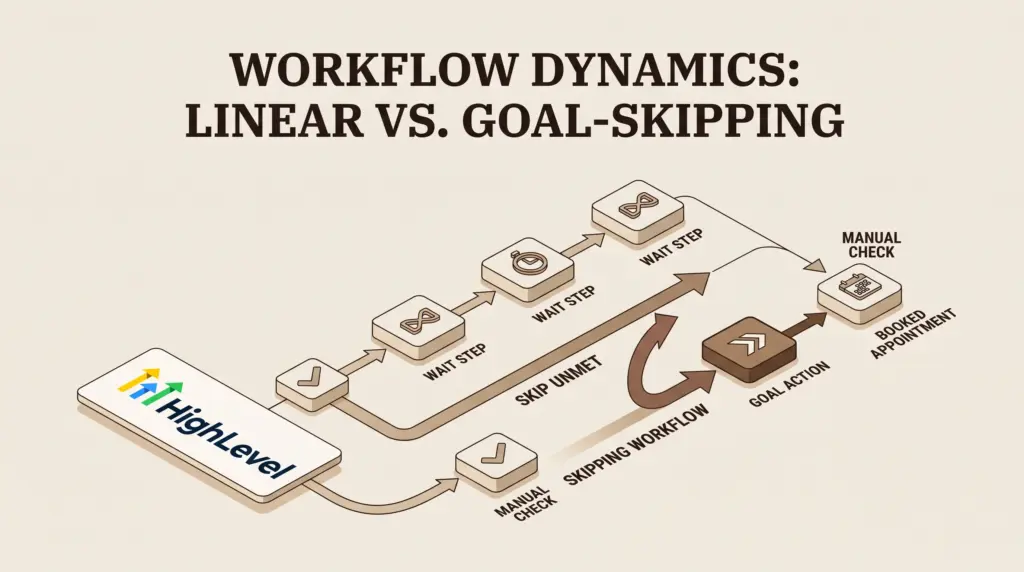
Wait nodes pause execution for a designated duration or until a specified condition is fulfilled (such as an upcoming calendar event or received response). This mechanism meters multi-day nurturing sequences and onboarding drip campaigns.
Goal Actions
Goal actions enable contacts to skip intermediary steps. When a contact reaches a predefined goal—such as completing an appointment booking midway through a nurture sequence—the Goal node pulls the contact directly to that step, bypassing downstream reminder messages automatically.
Chaining Workflows
HighLevel provides an “Add to Workflow” action that enrolls a contact into a secondary automation. This architecture allows administrators to maintain modular, single-screen automations rather than managing unwieldy, monolithic trees.
Workflow Node Types Compared
The following table summarizes the primary workflow node types available in the builder and their functional roles:
| Node Type | Primary Function | Execution Impact on Contact | Key Requirement |
|---|---|---|---|
| Trigger | Listens for a specific internal or external event | Enrolls new contacts into the canvas | Must be published to execute automatically |
| Filter | Refines the conditions of a trigger | Disqualifies contacts that fail specific criteria | Configured directly within the trigger panel |
| Standard Action | Executes tasks (SMS, email, tags, pipeline updates) | Modifies contact data or dispatches communications | Requires mapped dynamic fields or templates |
| If/Else Condition | Evaluates rules to branch paths | Splits flow into separate branching lines | Requires defined fallback (“None”) path |
| Wait / Drip Node | Pauses workflow progress | Holds contacts in queue for duration or event | Preserves original wait if duration is updated mid-queue |
| Goal Action | Monitors objective completion | Pulls contact forward, skipping intervening nodes | Requires measurable conversion or state change |
| Inbound / Outbound Webhook | Sends data out or receives raw JSON | Shares data across platforms without intermediary tools | Requires valid endpoint URL or payload structure |
Execution Rules and Contact Behavior Mid-Workflow
Understanding how HighLevel handles in-progress records is vital when modifying active automations:
- Draft vs. Published State: HighLevel decouples saving from publishing. A workflow can have saved changes while remaining in Draft mode. In Draft mode, triggers do not fire for live events. If a published workflow is toggled back to Draft, contacts currently waiting in pause steps remain held at that step until the workflow is republished.
- Mid-Queue Action Edits: If you modify an action that sits downstream from a Wait node, contacts currently waiting in that queue will execute the newly updated configuration once they advance.
- Modifying Active Wait Nodes: If you adjust the parameters of a Wait action while contacts are actively sitting in it, those contacts complete their originally assigned wait period. The updated duration applies only to contacts reaching the step after the edit is saved.
- Visual Loops: The canvas strictly prevents visual loop-backs (drawing a connecting line backward to an earlier node). However, administrative care is required when chaining workflows via tags or webhooks to prevent non-visual infinite loops.
Actionable Implementation Checklist: Launching a Workflow
Use this documented checklist when designing, verifying, and publishing an automation in HighLevel. Note that step sequences represent operational workflow construction, while the 5-minute reminder scenario is a hypothetical modeling assumption.
- [ ] Define Enrollment Triggers: Select one or more triggers (e.g., Form Submitted or Appointment Booked).
- [ ] Apply Scope Filters: Add conditional filters to restrict triggers to specific funnels, forms, or calendar IDs.
- [ ] Map Required Integration Accounts: Connect external third-party services before configuring integration-dependent actions to unlock mandatory form fields.
- [ ] Structure Branches and Fallbacks: Configure If/Else conditions ensuring that every branch, including the default “None” branch, has a clear operational destination.
- [ ] Establish Goal Skip Conditions: Insert Goal nodes if contact actions (such as paying an invoice or booking a call) should bypass pending reminder steps.
- [ ] Run Contact Test: Use the “Test Workflow” utility with an enrolled test contact. Ensure re-entry settings permit the contact to run if repeated testing is necessary.
- [ ] Verify In-Progress Queue Safety: If updating a live sequence, confirm that downstream step changes will not disrupt contacts currently resting in Wait states.
- [ ] Switch from Draft to Publish: Toggle the status indicator to “Publish” and click “Save” in the upper-right corner.
Documented Limitations and Operational Boundaries
HighLevel automations feature distinct operational boundaries documented in official knowledge base resources:
- Stats View Lock: When Stats View is activated from the top-left toolbar to analyze attempted, matched, or unmatched executions, workflow canvas editing is locked until Stats View is turned off.
- Trigger Analytics Retention: Trigger stats (contacts attempted, matched, and unmatched) report performance data strictly from the trailing 30 days.
- Testing Discrepancies: The built-in “Test Workflow” preview button is not an exact replica of live triggering. HighLevel documentation explicitly advises testing live workflows with a brand-new, clean contact record to verify re-entry settings, webhook handshakes, and actual communication delivery.
- Credential Dependency: If a connected third-party integration credential expires or is revoked, any workflow node powered by that integration immediately reverts to a locked state, blocking automated execution at that step.
Who Each Workflow Configuration Suits Best
HighLevel’s automation engine scales differently depending on operational complexity and team architecture:
- Solo Operators and Freelancers: Well-suited to basic linear recipes (Form Submission → Tag Contact → Instant SMS → Email Drip). This setup removes the expense of standalone autoresponders and third-party connector subscriptions.
- Client-Facing Agencies: Best served by modular, multi-workflow architectures deployed across sub-accounts. Teams managing complex lead pipelines should review HighLevel sub-account management to streamline template distribution without cross-client data contamination.
- High-Volume Enterprise Teams: Suited for operations deploying custom webhooks, math-based field modifications, and integrated appointment journeys across large databases. Compare base plan limits in our HighLevel Starter vs. Unlimited plan analysis.
Next Steps and Evaluation Strategy
Before assembling intricate automations, map trigger dependencies and test payloads thoroughly. For teams evaluating the software, HighLevel provides a trial incentive:
Terms: Payment details required. Subscription billing starts after the trial unless you cancel. Communication usage charges may apply during the trial. Confirm eligibility and the selected plan at signup.
For a complete breakdown of platform costs, feature gates across tiers, and communication usage charges, read our detailed guide on HighLevel pricing explained.
Sources and further reading
Research checked 2026-10-15. Product details can change.