


At a glance
HighLevel includes built-in one-time and recurring invoicing within every sub-account at no separate software add-on fee. Users can configure payment schedules, automatic or manual taxes, late fees, and tipping using connected processors like Stripe or custom gateways. Invoicing tools are included in base subscriptions, but external gateway transaction fees and standard email or SMS delivery charges apply when sending documents to clients.
Managing client billing directly within a CRM eliminates the need to maintain disconnected billing software. In HighLevel, invoicing tools operate inside individual sub-accounts, allowing freelancers and agencies to bill for ad-hoc projects, recurring retainers, or multi-part milestone contracts. For a wider breakdown of platform plan levels, consult our HighLevel pricing guide.
In this guide
Core Invoicing Features and Setup Options
HighLevel structures billing around two primary document workflows: single one-time invoices and automated recurring schedules. Before distributing an invoice, users can establish global invoice defaults under the sub-account payments settings to ensure standardized branding and compliance across all client transactions.
Global Billing Defaults
Setting global defaults standardizes customer-facing documentation without requiring manual reconfiguration for every transaction:
- Business Information: Upload your business logo, address, phone number, website, and dynamic custom values.
- Sender Email Settings: Specify the default sender name and email address used for invoice notifications.
- Layout and Prefixes: Define customized invoice numbering prefixes, payment terms, and button styling.
- Automated Reminders: Configure cadence, business hours, and timezone rules for email and SMS payment reminders when autopay or installment schedules are not active.
- Operational Rules: Establish partial payment thresholds, default due-date intervals, and optional tipping or late-fee parameters.
Invoice Customization Controls
When creating an invoice, line items can be selected from previously defined products or drafted directly within the editor. Supported adjustments include:
- Discounts: Subtract a flat cash amount or a specified percentage from the pre-tax subtotal.
- Taxes: Add manual flat rates or enable automated tax calculation across designated geographic jurisdictions.
- Payment Schedules: Split a large project total into multiple fixed-dollar or percentage-based installments with independent due dates.
- Ancillary Fees and Tips: Toggle client tipping prompts, late fees (percentage or flat fee with grace periods), and processing fees.
- Attachments: Append supporting project documentation or contracts directly to the outgoing delivery email.
Payment Processor Integrations and Transaction Fees
HighLevel does not directly process credit card funds; it orchestrates payments through external processors. Payment capabilities and fee structures depend on which gateway is connected to the sub-account.
Stripe and Payment Gateways
Connecting Stripe or a supported custom payment provider enables instant online payment links embedded in emailed or texted invoices. This setup supports credit cards and direct bank transfers, such as ACH or SEPA debits. While HighLevel charges no per-invoice platform commission on standard accounts, businesses remain responsible for standard merchant processing fees assessed by their connected gateway (such as Stripe’s standard per-transaction percentage and interchange fees).
Custom Providers and Manual Workflows
Supported custom payment providers can handle payment schedules, partial installment collections, automated late fees, and customer tips. If your sub-account operates without an online payment integration, HighLevel allows manual invoice creation. However, team members must collect payment off-platform and record the settlement manually inside the system to update invoice statuses from unpaid to paid.
Communication Usage Charges
Invoices can be delivered by email, text message (SMS), or by generating a live clipboard payment link. If sending invoices via HighLevel’s native communication channels, standard telephony and email transmission costs apply to your sub-account balance. Teams utilizing marked-up rebilling should review our HighLevel phone and email re-billing guide to account for client-level communication costs.
One-Time Invoices vs. Recurring Invoices
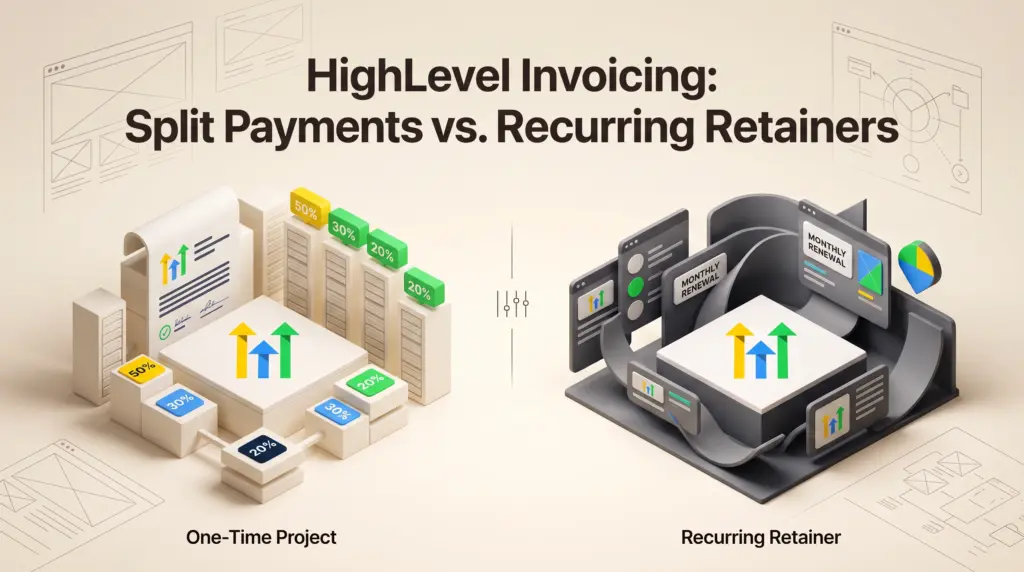
HighLevel separates single billing events from automated retainers into distinct document workflows. Selecting the right structure depends on how the service is delivered and whether backdating is required.
| Feature | One-Time Invoice | Recurring Invoice |
|---|---|---|
| Creation Command | + New → New Invoice | + New → New Recurring Invoice |
| Supported Products | One-time product catalog items or manual entry | Recurring subscription products |
| Issue Date Backdating | Supported | Not supported (starts current or future date) |
| Delivery Behavior | Dispatched once upon manual trigger | Generated and sent automatically per schedule |
| Installment Schedules | Supported (split into custom milestone dates) | Controlled by repeating billing intervals |
| Primary Use Case | Project setup fees, audits, and discrete deliverables | Monthly retainers, maintenance, and software access |
Documented Workflow Limitations
Understanding HighLevel’s documented operational constraints prevents common billing friction and client miscommunications:
- Non-WYSIWYG Editor Preview: The visual preview displayed on the right-hand side of the invoice editor is a structural mockup that often contains sample placeholder data. To inspect exact client-facing formatting, users must click the three-dot menu next to Save and choose Preview to open an accurate render in a new browser tab.
- Isolated One-Time and Recurring Charges: HighLevel cannot combine a one-time onboarding fee and an ongoing monthly subscription on a single invoice. Businesses must issue a one-time invoice for setup costs and a separate recurring invoice template for ongoing retainer billing.
- Deactivated Past-Due Links: If an invoice with a configured payment schedule passes its assigned payment date without settlement, the system automatically disables the online payment link. Collecting payment requires cloning the invoice, resetting schedule dates to a current or future day, and redistributing it.
- Draft Invoice Number Reservation: HighLevel reserves sequential invoice numbers the instant a draft is generated. If an administrator deletes a draft rather than sending it, that sequence number is skipped. Sequential numbering must be restored manually by overriding the invoice number field on subsequent drafts.
- Multi-Currency Restrictions: An invoice currency cannot be toggled arbitrarily inside the editor. Billing in an alternative currency (such as USD on an account defaulted to CAD) requires creating a dedicated product in the catalog with the desired currency specified prior to invoice assembly.
Actionable Checklist: Building Your First Invoice
Follow this verified sequence inside your sub-account to configure, verify, and dispatch an invoice cleanly:
- Navigate to Payments → Invoices & Estimates → Settings to verify business details, default tax rules, and email sender profiles.
- Confirm that your payment gateway (e.g., Stripe) is active, or confirm that your team is prepared to record payments manually.
- Click All Invoices → + New → New Invoice.
- Select the target contact record, then verify the invoice sequence number, issue date, and due date.
- Click Add Product to insert an existing catalog item or generate a custom line item.
- Apply any flat or percentage discounts, applicable taxes, or payment installments via Add Payment Schedule.
- Click Save. Open the three-dot menu next to Save and click Preview in the new tab to verify visual formatting and line items.
- Click Send, choose between Email, Text, or Email & Text, review the message template, and confirm live mode delivery.
Frequently Asked Questions
Why cannot my client open their invoice payment link?
Payment links automatically deactivate when an invoice with a defined payment schedule passes its scheduled due date. To reactivate payment, clone the invoice, adjust the payment schedule to a current or future date, and send the new link to the client.
Can I send an invoice link through an external email client like Outlook or Gmail?
Yes. In the invoice editor, open the send options or the three-dot menu on the invoice list and select Copy Link. This transitions the invoice status to Sent and copies a dynamic payment link to your clipboard, which can be pasted into any external communication channel.
How are customer credit card processing fees handled on invoices?
HighLevel allows administrators to configure an optional handling or processing fee within the Additional Options section of the invoice. This fee is calculated at checkout and presented to the client when they click to finalize payment.
Sources and further reading
Research checked 2026-11-05. Product details can change.