


At a glance
To import contacts into HighLevel, prepare a CSV file of up to 50MB, navigate to Contacts, and click the Import icon. Map your file columns to HighLevel standard fields or pre-built custom fields, set your deduplication and consent preferences on the final screen, and run the bulk import. All plans include unlimited contact storage without tier-based database limits.
Transitioning contact records into HighLevel is a foundational step when setting up your CRM. Because all HighLevel subscription tiers—starting with the Starter plan at $97 per month and the Unlimited plan at $297 per month—include unlimited contacts, you do not pay graduated storage penalties as your audience expands. You can review overall tier differences in our HighLevel pricing breakdown.
However, an unstructured upload can fragment your database. Successful imports require auditing standard fields, pre-creating custom fields, and setting compliance parameters before executing the transfer.
In this guide
Documented File Specifications and Limits
HighLevel accepts contact data through spreadsheet uploads under explicit file conditions documented by the provider:
- File Type: Comma-Separated Values (CSV).
- File Size Limit: Up to 50MB per uploaded CSV file.
- Sample Template: HighLevel provides a downloadable sample file inside the import workflow displaying standard header structure.
If your legacy database exceeds 50MB, you must split your contact records into multiple CSV files before initiating the upload sequence.
Standard vs. Custom Contact Fields
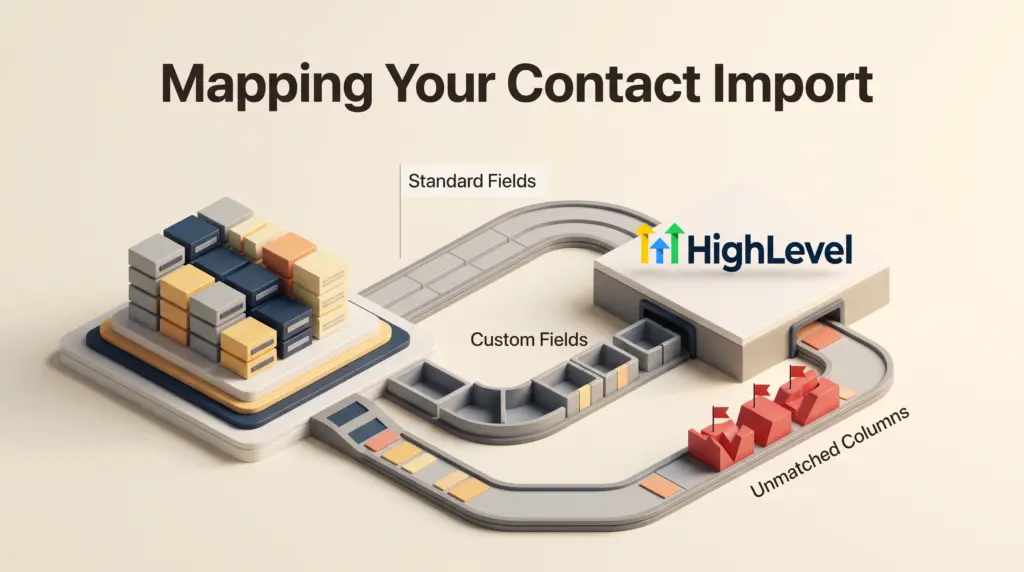
HighLevel maintains a fixed set of standard system fields. If your existing database includes proprietary tags, unique account numbers, or niche business attributes, you must build custom fields before running your import to prevent unmapped data loss.
Supported Standard Contact Fields
HighLevel recognizes the following default fields out of the box:
- Identity: Contact ID, Name, First Name, Last Name, Date of Birth.
- Contact Methods: Email, Additional Email, Phone, Additional Phones, Website.
- Physical Location: Address, City, State, Postal Code, Country, Time Zone.
- Account Metadata: Business Name, Contact Owner, Contact Source, Contact Type, Notes.
- Communication Rules: DND (Do Not Disturb).
Setting Up Custom Fields Before Import
If you have non-standard columns in your spreadsheet, navigate to Settings > Custom Fields and click Add Field before launching the import flow. Select the appropriate data type (such as text, numeric, dropdown, or date), name the field, assign it to a group, and save it. Any column in your CSV that cannot be mapped to a standard or pre-created custom field must either be mapped on the fly or marked as “Don’t import data in unmatched columns” to proceed.
Step-by-Step Import and Consent Workflow
Once your CSV columns correspond to HighLevel fields, follow the documented import sequence:
- Access the Tool: In your target sub-account dashboard, navigate to Contacts and select Import (the tray icon with a downward-pointing arrow). For teams balancing several client brands, ensure you are working within the correct partition, as detailed in our guide to HighLevel sub-account management.
- Upload Document: Under Imports-1, choose Contacts, confirm your CSV format, and upload your file (up to 50MB).
- Map Columns: HighLevel matches headers automatically where possible. Review each row to ensure columns route to the correct standard or custom field.
- Configure Import Details and Consent: Name your import batch, attach tags or assign contacts to specific smart lists, and confirm consent preferences. HighLevel provides options to set communication consent rules and apply deduplication preferences.
- Execute Bulk Import: Click Bulk Import and allow the system to process the records in the background.
Managing Consent and DND Status
HighLevel enforces strict telecommunications and email compliance across its communication channels. When importing numbers and email addresses, setting consent accurately helps protect your domain and sender reputation:
- Do Not Disturb (DND): HighLevel supports a dedicated DND field during import. If a contact has previously opted out of phone calls, SMS, or marketing emails, mapping an active DND status ensures that downstream automations do not message them inadvertently.
- Opt-In Documentation: The import configuration screen asks you to specify your consent preferences. Only import contacts who have provided verifiable consent to receive marketing messages to comply with regulatory standards.
- Automated Triggers: If you plan to trigger welcome campaigns immediately after upload, review your automations beforehand. You can inspect trigger behaviors in our guide on HighLevel workflow automation to avoid sending premature broadcasts to an entire cold batch.
- [ ] The file is saved as a single CSV format under 50MB.
- [ ] Phone numbers include standard country and area codes to prevent parsing failures.
- [ ] First and last names are isolated into distinct columns if you rely on personalized merge tags.
- [ ] Custom fields required for unique metrics or legacy platform IDs are already created under Settings > Custom Fields.
- [ ] Legacy unsubscribes are tagged or mapped to the system DND field.
- [ ] Unmatched columns are either resolved or intentionally excluded using the unmatched column setting.
- File Formats: HighLevel does not support raw XLS, XLSX, or compressed archive imports natively through this screen; you must convert data to CSV.
- Capacity per Batch: The file upload ceiling is capped at 50MB per file.
- Unmatched Data: Any column that is not mapped to an active standard or custom field will be skipped if you choose to drop unmatched columns, which cannot be undone automatically post-import.
Pre-Import Quality Checklist
Before uploading your CSV file into HighLevel, verify each item on this planning checklist:
Documented Limitations
Who This Setup Suits
The standard HighLevel CSV import workflow suits freelancers, service businesses, and agencies consolidating lead lists from external spreadsheets, legacy CRMs, or form builders. Because storage is unlimited across all subscription tiers, teams evaluating the platform during their onboarding period—such as working through our first 30 days HighLevel setup checklist—can migrate historical customer lists without paying extra per contact.
Frequently Asked Questions
Does HighLevel charge extra for storing imported contacts?
No. HighLevel plans include unlimited contacts and users. There are no tiered contact limits or database overage fees on the $97 per month Starter or $297 per month Unlimited plans.
What happens if a contact already exists in HighLevel?
During the import configuration phase, HighLevel allows you to manage deduplication preferences, determining whether identical email addresses or phone numbers update existing records or create duplicates.
Can I import opportunities alongside contacts?
Yes. HighLevel provides separate CSV workflows to import contacts and pipeline opportunities, enabling you to populate both contact profiles and active deal stages.
Sources and further reading
Research checked 2026-11-04. Product details can change.